I've always been fascinated with handhelds and portable electronics. Having something that does the job of a computer but I can bring it with me anywhere? I don't care if it only has an Intel Atom, sign me up!
So the recent(ish) surge in these retro handhelds like the Anbernics and Retroids got me interested, naturally. Not for their intended ability to play video games, I have plenty of ways to play Mario Bros. (Europe).nes, thank you very much. But rather, these all run existing operating systems, ranging from Linux, to Android, to Windows. They're all quite inviting to customizing, hacking and other tomfoolery, which can and will take up several afternoons. In a world where mobile operating systems are getting more locked down than ever, it's refreshing to have control over a pocketable computer again.
Today's target is an Anbernic RG35XXSP. As you can no doubt tell, it is designed to look like a certain 2000s handheld. That's nice and all, but more importantly is that it runs Linux, has removable storage, and SSH access. The trifecta to cracking a device wide open. The stock OS that Anbernic supplies is fine, but I went with muOS, because I had been using that already, and the official firmware download link has exceeded its download limit. Thanks a lot, Google Drive.
Though, perhaps it was a blessing in disquise - muOS comes with a lot of tools on there, few of which are really needed for handheld gaming, but very fun for me. It's a shame that it doesn't seem to be documented anywhere. In fact, almost none of what I'm about to detail here is. That's kind of why I'm writing it.
Oh, and the SP also has USB OTG. I probably should have mentioned that before. It's how you can connect a keyboard.
If you have one of these, here's how you can turn your suspiciously Game Boy shaped handheld into a pocket terminal. If you have another muOS device, I can't guarantee that this will work, but if you're the type to be reading this article, I assume you're the type to try anyway.
1. Setup
Go over to muos.dev and download the image for your handheld. Then download balenaEtcher. I'd avoid Rufus, as it can mess with the SD card in ways that make the SP not recognize it. (Don't get me wrong, fantastic program otherwise.)
If you have dd, you can use that, too. I take no responsibility for any disks destroyed, however.
Once finished and booted up in the handheld, you'll need to go through the installer. Do that, connect with Wi-Fi, and enable SSH in the web services menu. You'll also want to look in network details to find the hostname of your device, (or your IP, but that might be variable depending on your network.) Then, reboot.
2. Archeology
If we log in with ssh, (as root, password root) and do a ps aux and search for some terms that might lead us somewhere, we'll see something like this.
|
[~]# ps aux | grep -iE "muos|frontend|mustard" 1342 root /opt/muos/bin/haveged -w 1024 -T 4 1698 root pipewire -c /opt/muos/share/conf/pipewire.conf 1787 root {lid.sh} /bin/sh /opt/muos/script/device/lid.sh run 1885 root /opt/muos/bin/ufs/unionfs /mnt/mmc/ROMS=RW /mnt/union/ROMS 1896 root /opt/muos/bin/ufs/unionfs /mnt/mmc/ports=RW /mnt/union/ports 2087 root {hotkey.sh} /bin/sh /opt/muos/script/mux/hotkey.sh 2100 root {frontend.sh} /bin/sh /opt/muos/script/mux/frontend.sh 2204 root {idle.sh} /bin/sh /opt/muos/script/mux/idle.sh run 2243 root /opt/muos/frontend/muhotkey 2328 root {lowpower.sh} /bin/sh /opt/muos/script/system/lowpower.sh 3341 root {muxlaunch} /opt/muos/frontend/muxfrontend muxfrontend 4006 root {keepalive.sh} /bin/sh /opt/muos/script/web/keepalive.sh 4059 root /opt/muos/bin/chronyd -f /opt/muos/share/conf/chrony.conf 4962 root grep -iE muos|frontend|mustard |
Hmm. Process 2100, frontend.sh. Where does that get started?
After some find-grepping, I found it was triggered in /opt/muos/script/system/startup.sh . Edit it with vi or nano here; you won't find it by mounting the SD card on your PC. There's a line that just says FRONTEND start , and so I commented that out. There was also a HOTKEY start, which I also commented out for good measure. I assume that's for things like holding M+Start to return to the home page.
One reboot later, and... black screen. But for once, this is actually a good one! The frontend never runs, but we're still at a point where we can log in with SSH.
Remember how I said muOS comes with a lot of tools? One of them is a terminal. It's called fbpad, the fb standing for framebuffer. It writes directly to it - we don't have Xorg or anything here. (There's another one installed called fbterm that's a bit fancier, if you prefer, but it has very small text by default. Probably customizable though, I just haven't bothered figuring out how.)
While you're at that black screen and connected via SSH, try typing:
| setsid fbpad /bin/sh < /dev/tty1 > /dev/tty1 2>&1 |
setsid starts a new session with fbpad, and we redirect /dev/tty1 to it.
You should see the terminal. Try plugging in a USB keyboard, and log in as root.
If that succeeds, you can add it to the end of your startup.sh file:
| exec /opt/muos/bin/fbpad /bin/sh < /dev/tty1 > /dev/tty1 2>&1 |
exec tells the startup script to just run it and let it go, as opposed to waiting for it to finish. Save and reboot once more.
3. The results
If successful, you should see a # and blinking cursor on your screen after a few seconds of booting. (If at any point you get no green light activity, you might need to hold the Reset button for a bit.)
Here I'll run neofetch for the screenshot (fastfetch is included too, if you prefer), and presto!
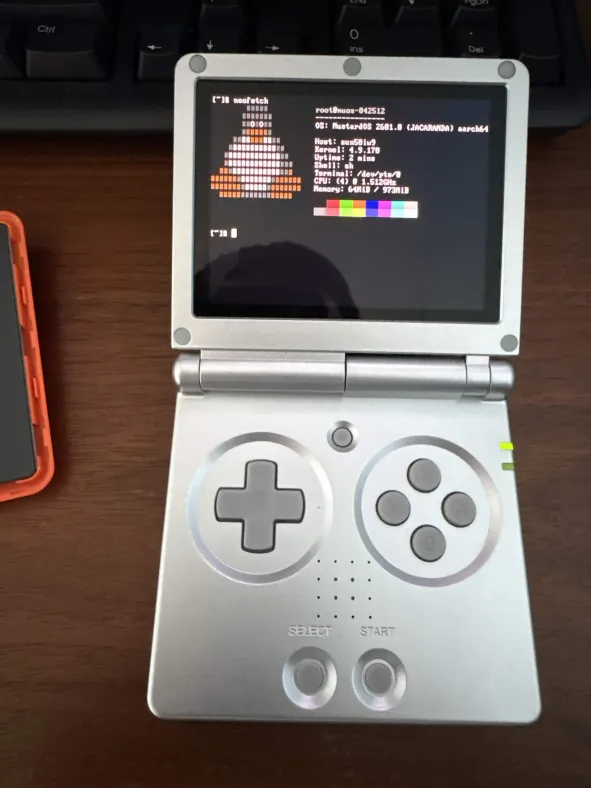
Plug in a keyboard and enjoy your new Linux clamshell. You might want one of those mini ones that have a 2.4ghz reciever with them, bluetooth keyboards don't work as far as I can tell. I'd be interested if someone can get a CardKB or Blackberry keyboard working with this...
4. Other tips
You might notice a few things about this terminal on your device:
1. Not all the tools available in the SSH session are here.
2. It's black and white.
3. There's no battery indicator here!
We can (and should) fix those. In your SSH session, run:
| echo $PATH |
| export PATH=/bin:/sbin:/usr/bin:/usr/sbin:/opt/muos/bin:/opt/openssh/bin:/opt/micro:/opt/fish/bin:/opt/java/bin |
|
export TERM=linux export COLORTERM=truecolor alias ls='ls --color=auto' |
| cat /sys/class/power_supply/axp2202-battery/capacity |